Keep in mind… I’m “lying” to you, a bit. This isn’t the EXACT, 100% accurate version of how all of these things work. We’re truncating things a bit, because expounding on all of these topics would take too long, and it’s important that we jump into programming syntax soon. However, the information presented here is true enough for our purposes; if you’d like to learn more, you can look up some of these topics on your own.
How do computers DO STUFF?
The fundamental concept that drives computers is electronic circuits. Specifically, we can use small electronic components to store charges of electricity. When we store an electric charge in a super-tiny electronic component, we think of that component as being ON. Otherwise, this component is OFF. We can also think of OFF/ON as 0/1.
We can use groups of 0s and 1s to represent… well, anything we want! Let’s look at some examples together!
- Binary numbers!
- Binary… images?
- Instructions!
- It’s all up to us!
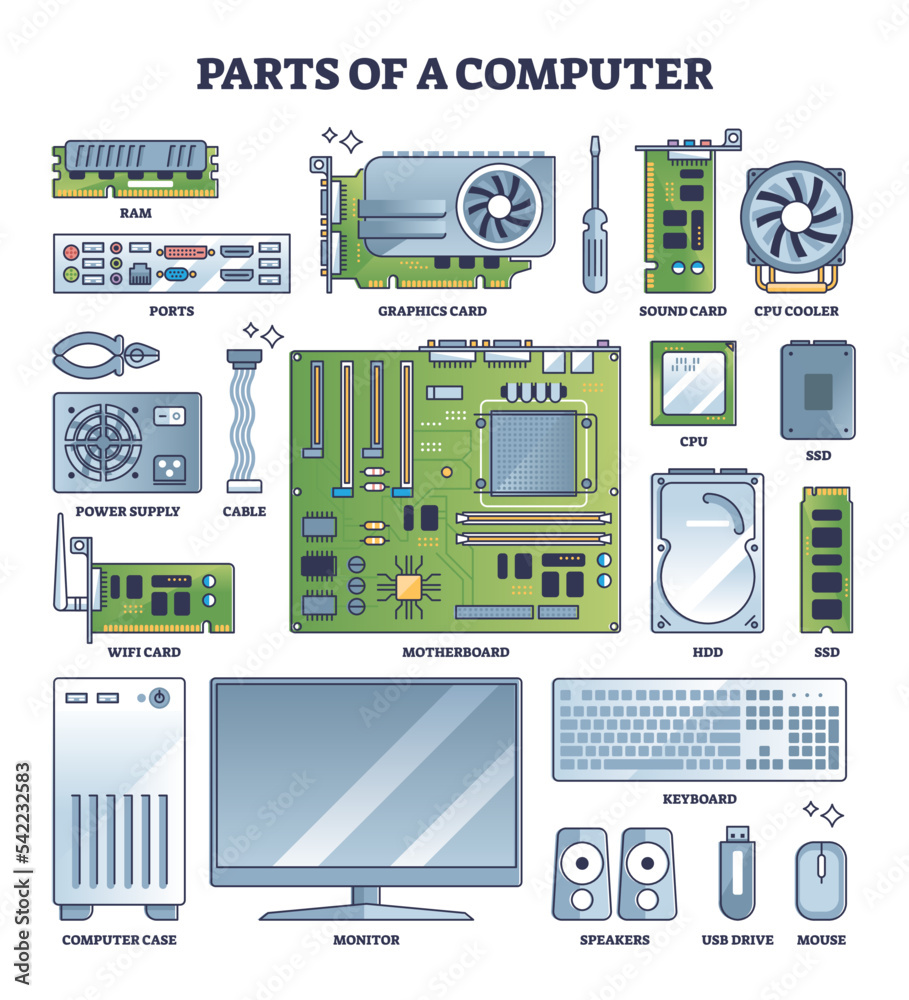
Modern computers are able to manipulate these tiny circuits VERY QUICKLY, and in LARGE QUANTITIES. Let’s look at some of the PC parts that make this possible!
Basic Computer Parts
Power Supply: Distributes electricity to all PC parts.
Motherboard: Connects all PC parts and mediates their communications.
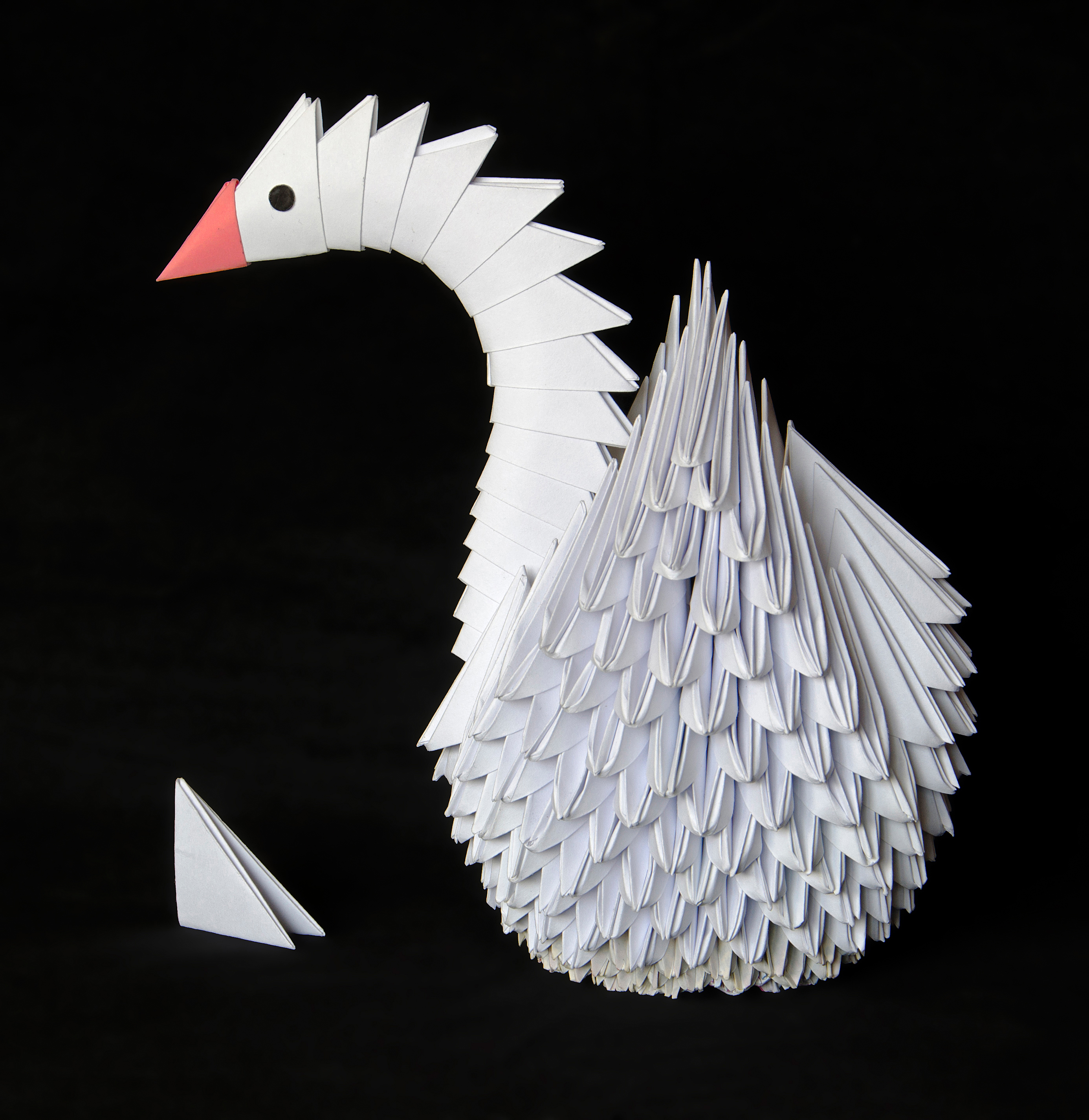
CPU: Processes and executes instructions. Addition, multiplication, etc. It can work fast, but it isn’t smart. Think of it like… a weird little machine that is AMAZING at Origami… we will come back to this!
RAM: Stores data (0s and 1s) for all currently active applications. It’s like the “working memory” of a PC.
Storage Drive: Stores long-term data (0s and 1s) such as files and installed applications.
Graphics Card: Processes visual information really fast and displays it to the monitor(s).
Basic Computer Operation
Firmware (BIOS) Basic input/output system of a computer When a PC is powered on, the BIOS will configure hardware (fan speed, etc), and it will boot the actual operating system
flowchart LR
	id1((POWER<br>BUTTON))
	id2(BIOS)
	id3(Windows<br>Operating System)
	id1 --> id2 --> id3
Operating System
The operating system (OS) is sorta like a big program that manages all other programs
It is the boss of running applications, and handles their access to resources (like memory)
It also handles peripherals (keyboard, mouse, headphones)
Files and folders are handled by the OS
Running programs need access to the mouse, computer memory, etc, and the OS acts as the intermediary
flowchart LR
	id1(Programs)
	id2(Operating<br>System)
	id3{{"System resources<br>(Memory, File System, Peripherals)"}}
	id1 --> id2 --> id3 --> id2 --> id1
Applications (programs)
Chrome, Steam, MS Word, Photoshop, etc
When an application starts, the OS gives it some memory and starts executing instructions (by that we mean, the OS is feeding a program’s instructions to the CPU)
Applications ask the OS for resources, to perform all kinds of tasks
Applications will manipulate the files on your PC (text, picture, video, save files, etc)
They all compete for resources (memory, network bandwidth, graphics card)
OK, cool… what does this have to do with programming?
Programs are just sets of instructions (0s and 1s), and the data they operate on (also 0s and 1s)
When a program is running, the program’s instructions go to the CPU
For example, a calculator program is adding two really big numbers together
The INSTRUCTION to add the two numbers is part of a program’s CODE
The operating system will hand that instruction, and the two numbers, to the CPU
The CPU understands the instruction, and adds the two numbers
The result flows back into the program’s memory, in RAM
What is programming?
Programming is writing human-readable code that is translated into machine code
Human-readable code ⇒ C#, C++, Java, Python, etc
Machine code ⇒ 0001010010101001010101110100111111000101
We write code that is understandable to humans, but must be converted into something machines can understand
Code is just a text file!… that is then converted into an executable (a program, binary) …but why?
Everything is converted into 1’s and 0’s because CPUs are really good at manipulating numbers (really, small electronic circuits that hold representations of numbers!)
Programming Workflow
There are a number of steps we go through when writing a Python script:
- Edit source/code files
- Run the script (get errors or succeed!)
- Observe the running program
- Refactor and Optimize
We’ll talk about each of these steps as we write our first example!
---
title: Programming Workflow
---
flowchart LR
a["Edit code <br> (just a text file)"]
c["Run Python script <br> "]
e["Our .exe works!"]
f[Fix code errors]
g[Optimize and improve]
h[Fix bugs or other issues]
a --> c -->|Success!| e -->|Success!| g --> a
 c -->|ERRORS| f --> a
 e -->|Doesn't work right| h --> a
 h ~~~ g

 classDef startNode stroke:#ffffff,stroke-width:4px;
 classDef goodNode stroke:#2bff24,stroke-width:4px;
 classDef runNode stroke:#2471ff,stroke-width:4px;
 classDef badNode stroke:#f22222,stroke-width:4px,stroke-dasharray: 5 5;

 class a,c,g goodNode;
 class e runNode;
class f,h badNode;
Program Structure
Below is a very simple Python script example:
print("Hey, print out this text!")We write lines of code that store and manipulate data, and put them in our Python script.
When the program runs, each line of code is executed, from top to bottom.
Once all of the code has been executed, the program closes.
A common first program we could write looks like this:
print("Hello, world!")Python Syntax Basics
Let’s discuss each section of our Hello World program:
printThis is a utility that prints text to the screen using our console window.
("Hello, world!")The parentheses and quotes above enclose the text that is to be printed on the screen.
How do you suppose we could print multiple lines of text?
Comments
Whenever you want to document your code INSIDE of your code, you can use comments! To make a comment, use the # key, and the rest of the line will be a comment!
#This line is a comment!
print("Yup, the stuff above is just a comment")
This comment text won’t affect your running program in ANY way; it’s merely a documentation tool for your code. You can also comment out lines of code to prevent them from affecting your program! This can be an effective way to debug what is going wrong in your code. Speaking of which…
Screwing up Syntax: Errors
You may have heard the term SYNTAX before. With respect to programming, it just means how to use the Python language in a way that makes sense (meaning, you wrote a real program instead of gibberish). If you happen to screw up syntax, don’t worry! It’s usually straightforward to correct on your own. But it’d be a good idea to look at some ways in which you can screw things up, and what they look like, so let’s dive into some common errors.
Keep in mind that errors are a NATURAL AND NOT BAD part of programming. Every programmer, even those that have been programming for decades, makes mistakes. Errors are not meant to signal FAILURE, but instead are a way to understand what we did wrong so we can correct those mistakes.
NameError: name ‘whatever’ is not defined
Say this is your code:
Print ("Hello, world!")This looks exactly the same as what we printed earlier… but it isn’t. Can you spot the difference?
#Old code!
print("Hello, world!")

#New code!
Print ("Hello, world!")
The bottom line has Print with a capital ‘P’ instead of lower case. Things in python are CASE SENSITIVE, meaning you need to pay attention to which case you’re using when writing code. The error you will see looks like this:
Traceback (most recent call last):
  File "main.py", line 4, in <module>
    Print("Hello, world!")
NameError: name 'Print' is not defined
Print is not defined! That means, you probably made an error where that “Print” utility is being used, and you need to use something else.
SyntexError: Missing parentheses in call to…
What if we didn’t use parentheses whenever we call on our print utility?
print "My dog Mars is amazing!"This is the error that we’d get:
  File "main.py", line 4
    print "My dog Mars is amazing!"
          ^
SyntaxError: Missing parentheses in call to 'print'. Did you mean print("My dog Mars is amazing!")?
Sometimes error messages can be nice and illuminating, like the one above! Others, however…
SyntaxError: invalid syntax
What if we forget the parentheses AND a space after the word “print”?
print"My dog Mars is amazing!"File "main.py", line 4
print"My dog Mars is amazing!"
^
SyntaxError: invalid syntax
This error isn’t very descriptive! But it’s basically saying “you messed up SOMETHING here, go fix it”.
Error: unexpected EOF while parsing
Whoa, this one looks a bit odd. Basically, this error means that there’s some kind of character or other thing that was expected, but we forgot to include it! Here’s an example of this error happening because we forgot a parenthesis on the end of our print:
print("Some stuff" File "main.py", line 5
^
SyntaxError: unexpected EOF while parsing
SyntaxError: EOL while scanning string literal
Similar to the issue above, this error happens when you forget the ending double quotes while printing something out:
print("Some stuff)File "main.py", line 4
print("Some stuff)
^
SyntaxError: EOL while scanning string literal