Keep in mind… I’m “lying” to you, a bit. This isn’t the EXACT, 100% accurate version of how all of these things work. We’re truncating things a bit, because expounding on all of these topics would take too long, and it’s important that we jump into programming syntax soon. However, the information presented here is true enough for our purposes; if you’d like to learn more, you can look up some of these topics on your own.
How do computers DO STUFF?
The fundamental concept that drives computers is electronic circuits. Specifically, we can use small electronic components to store charges of electricity. When we store an electric charge in a super-tiny electronic component, we think of that component as being ON. Otherwise, this component is OFF. We can also think of OFF/ON as 0/1.
We can use groups of 0s and 1s to represent… well, anything we want! Let’s look at some examples together!
- Binary numbers!
- Binary… images?
- Instructions!
- It’s all up to us!
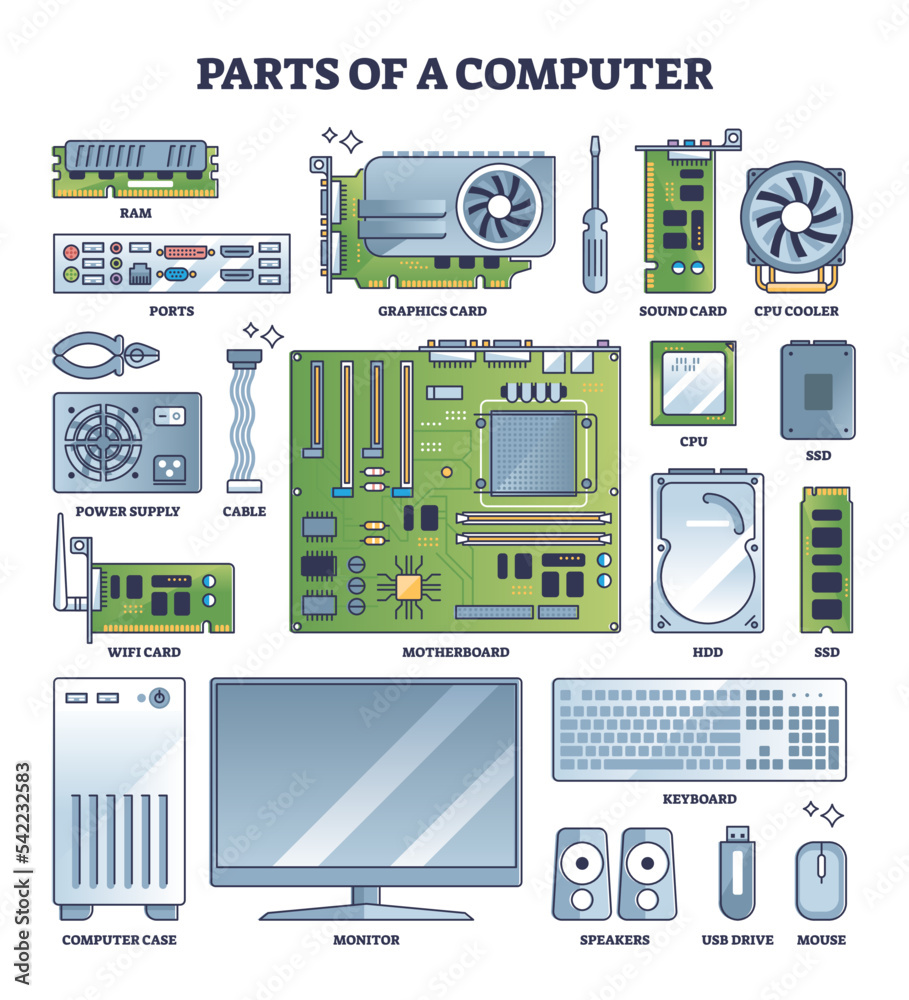
Modern computers are able to manipulate these tiny circuits VERY QUICKLY, and in LARGE QUANTITIES. Let’s look at some of the PC parts that make this possible!
Basic Computer Parts
Power Supply: Distributes electricity to all PC parts.
Motherboard: Connects all PC parts and mediates their communications.
CPU: Processes and executes instructions. Addition, multiplication, etc. It can work fast, but it isn’t smart. Think of it like… a weird little machine that is AMAZING at Origami… we will come back to this!

RAM: Stores data (0s and 1s) for all currently active applications. It’s like the “working memory” of a PC.
Storage Drive: Stores long-term data (0s and 1s) such as files and installed applications.
Graphics Card: Processes visual information really fast and displays it to the monitor(s).
Basic Computer Operation
Firmware (BIOS) Basic input/output system of a computer When a PC is powered on, the BIOS will configure hardware (fan speed, etc), and it will boot the actual operating system
flowchart LR
	id1((POWER <br> BUTTON))
	id2(BIOS)
	id3(Windows Operating System)
	id1 --> id2 --> id3
Operating System
The operating system (OS) is sorta like a big program that manages all other programs
It is the boss of running applications, and handles their access to resources (like memory)
It also handles peripherals (keyboard, mouse, headphones)
Files and folders are handled by the OS
Running programs need access to the mouse, computer memory, etc, and the OS acts as the intermediary
flowchart LR
	id1(Programs)
	id2(Operating <br> System)
	id3{{"System resources<br>(Memory, File System, Peripherals)"}}
	id1 --> id2 --> id3 --> id2 --> id1
Applications (programs)
Chrome, Steam, MS Word, Photoshop, etc
When an application starts, the OS gives it some memory and starts executing instructions (by that we mean, the OS is feeding a program’s instructions to the CPU)
Applications ask the OS for resources, to perform all kinds of tasks
Applications will manipulate the files on your PC (text, picture, video, save files, etc)
They all compete for resources (memory, network bandwidth, graphics card)
OK, cool… what does this have to do with programming?
Programs are just sets of instructions (0s and 1s), and the data they operate on (also 0s and 1s)
When a program is running, the program’s instructions go to the CPU
For example, a calculator program is adding two really big numbers together
The INSTRUCTION to add the two numbers is part of a program’s CODE
The operating system will hand that instruction, and the two numbers, to the CPU
The CPU understands the instruction, and adds the two numbers
The result flows back into the program’s memory, in RAM
What is programming?
Programming is writing human-readable code that is translated into machine code
Human-readable code ⇒ C#, C++, Java, Python, etc
Machine code ⇒ 0001010010101001010101110100111111000101
We write code that is understandable to humans, but must be converted into something machines can understand
Code is just a text file!… that is then converted into an executable (a program, binary)… but why?
Everything is converted into 1’s and 0’s because CPUs are really good at manipulating numbers (really, small electronic circuits that hold representations of numbers!)
We turn human-readable code (text file) into machine code (an executable) using a special program called a compiler
Programming Workflow
There are a number of steps we go through when writing programs:
- Editing source/code files.
- Compiling the code.
- Create a program (executable)
- Run the program
- Refactor and Optimize
We’ll talk about each of these steps as we write our first example in lab.
---
title: Programming Workflow
---
flowchart LR
z(START HERE)
a["Edit code <br> (just a text file)"]
c["Compile code <br> (build)"]
e["Run .exe"]
f[Fix compile errors]
g[Optimize and improve]
h[Fix bugs]
z ==> a --> c -->|Success!| e -->|Success!| g --> a
 c -->|ERRORS| f --> a
 e -->|Doesn't work right| h --> a
 h ~~~ g

 classDef startNode stroke:#ffffff,stroke-width:4px;
 classDef goodNode stroke:#2bff24,stroke-width:4px;
 classDef runNode stroke:#2471ff,stroke-width:4px;
 classDef badNode stroke:#f22222,stroke-width:4px,stroke-dasharray: 5 5;

 class z startNode;
 class a,c,g goodNode;
 class e runNode;
class f,h badNode;
C# Program Structure
Every C# program starts with what is known as a main function, like so:
static void Main()
{
	int x = 5;
	int y = 3;
	int z = x + y;

	Console.WriteLine("The value of z is: " + z);
}
We write lines of code that store and manipulate data, and put them in this main function.
When the program runs, each line of code is executed, from top to bottom.
Once all of the code has been executed, the program closes.
A common first program we could write looks like this:
static void Main()
{
	Console.WriteLine("Hello World!");
}
But what does all this stuff MEAN? Why do we have dots and braces and parentheses and semicolons all over the place? How are you even supposed to know what any of these magical words DO?!
Let’s get into some C# syntax basics, so you can start writing your first program.
C# Syntax Basics
Looking again at our basic FIRST PROGRAM EVER:
static void Main()
{
	Console.WriteLine("Hello World!");
}
Let’s break this into two distinct chunks:
//There may be other stuff that goes around here!
//We'll talk about it in time...

static void Main()
{

}
This first chunk is that main function I mentioned. It is a SPECIAL part of your program. Really the only thing you need to know about it right now is that ALL of the code you write for your programs will go between the curly braces you see above. Nothing above, nothing below… just inside the curly braces please!
You’re also probably wondering what those other words (static and void) mean, and why there are parentheses after the Main word. For now, let’s chalk this up to Dark Magic, that we’ll talk about further into the semester.
Takeaway: put your code in the curly braces.
The second chunk looks like this:
Console.WriteLine("Hello World!");What does all THIS junk mean?
The blue words above, Console.WriteLine, is a utility that tells our program to write output to a little console window. How cool is that?!
The words that we want to display are put inside parentheses, and then double quotes. You can change those green words to be… whatever you want! And that bit of text will appear in the console window!
You’ll notice that this line of code ends with a semicolon. That’s on purpose! A semicolon goes at the end of most lines of code. If you forget to include the semicolon, or make some other mistake (like writing Console.Writeline without a capital L) you’ll get something called a Compile Error!
But we’re getting ahead of ourselves a bit. What is compiling?
Compiling (or building) Our Code
Now that we have finished the code for our first program, we need to turn this text file of code into machine code that our computer can RUN. To do that, we’ll compile the code (sometimes called building the code or project).
There are different methods for doing this in Visual Studio and VPL(Moodle), and we’ll dive into those now.
When you compile your code, you’ll either achieve success, in which case you’ll have an EXE that you can run on your computer, or you’ll get a Compile Error.
Errors
There are different ways that we can encounter errors when writing our code. The most common is called a compile error. It essentially means you wrote some C# code that wasn’t correctly formatted REAL C# code. For example, the code below should work just fine:
//THIS IS A WORKING PROGRAM, AWESOME!
static void Main()
{
	Console.WriteLine("Hello World!");
}
While THIS code:
//Oh dang, this won't work...
static void Main()
{
	Words and more words!... but not code!
	Blargl dargl not coooooode
}
The stuff in the curly braces isn’t C# code… it’s just some gibberish! So you’ll encounter a compile error when you try to build this code.
Keep in mind that compile errors are NORMAL, and will DEFINITELY happen to you! They’re a natural part of programming. You will learn over time what sorts of common pitfalls produce compile errors, and how to avoid them. You’ll also become more familiar with how to decipher a compile error, so you can fix it on your own without much help.
Comments
One last basic to cover is comments. They’re essentially notes you can make in your code, that don’t affect the compilation process in any way; they’re just for human eyes to see… code documentation!
Comments can be done in one of two ways:
//This is a line comment, everything on THIS line after the double forward-slashes is a comment!

int x = 5;
//The line above is not a comment, but THIS line is!

/*
	This is a block comment. It starts with the forward-slash star, and ends with star forward-slash
	So a comment can span multiple lines, no need for the double forward-slash
*/
Comments are great for documenting code, but they can be incredibly useful in another way: rendering code inert without deleting it!
//Is the line below buggy? I'm not sure... commenting out for now!
//int x = 87;

//I know this line works...
int y = 42;
Instead of deleting code, why not try commenting it out first? This trick is very useful for debugging troublesome lines of code or narrowing down where issues are occurring in your program.