The course outcomes for CS120 include reading, writing, compiling, executing, and (to a small extent) debugging code in the C programming language. You can’t accomplish these without the appropriate software!
To that end, you will need the following:
- A text editor (for reading and writing code)
- A compiler (for turning human-readable C code into executable machine code)
- A debugger (for walking through code while it is running, to inspect and fix it)
- A text comparison/diff tool (for comparing differences between text files, to check your program’s output against accepted answers)
So what software should you download? For this course you’ll be compiling your code with the MSVC compiler, which is included with Visual Studio. You may have already used or downloaded this software. You may also want to use Notepad++ as an alternative text/code editor.
Visual Studio
Why are we using Visual Studio in CS120?
It is ubiquitous in the software development industry, including game development
It is used in your GAM100 class… you might have already downloaded it for that class!
It is used in other advanced classes at DigiPen
It contains a text editor, a compiler, a debugger, and a diff tool, because Visual Studio is an Integrated Development Environment (IDE)
It is relatively straightforward to install
You should not need to edit your system’s PATH environment variable
What if I already have Visual Studio 2022 installed?
- You shouldn’t need to redownload VS 2022
- You can use the Visual Studio Installer (a program included with Visual Studio) to double-check that you have installed VS correctly
Download/Installation
- Previously we would search for Visual Studio on the official download pages, but Microsoft has decided to hide the VS2022 Community download in an odd place. We’ll be going directly to that link instead.
- Click on this link to download VS2022: DOWNLOAD
Open the downloaded executable, called ==vs_Community.exe==.
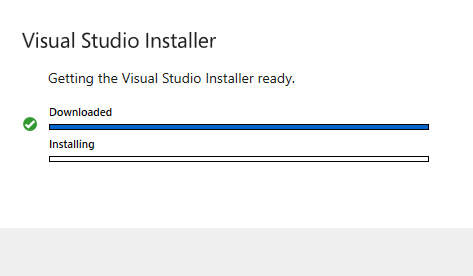
The Visual Studio Installer will download and install, similar to below:
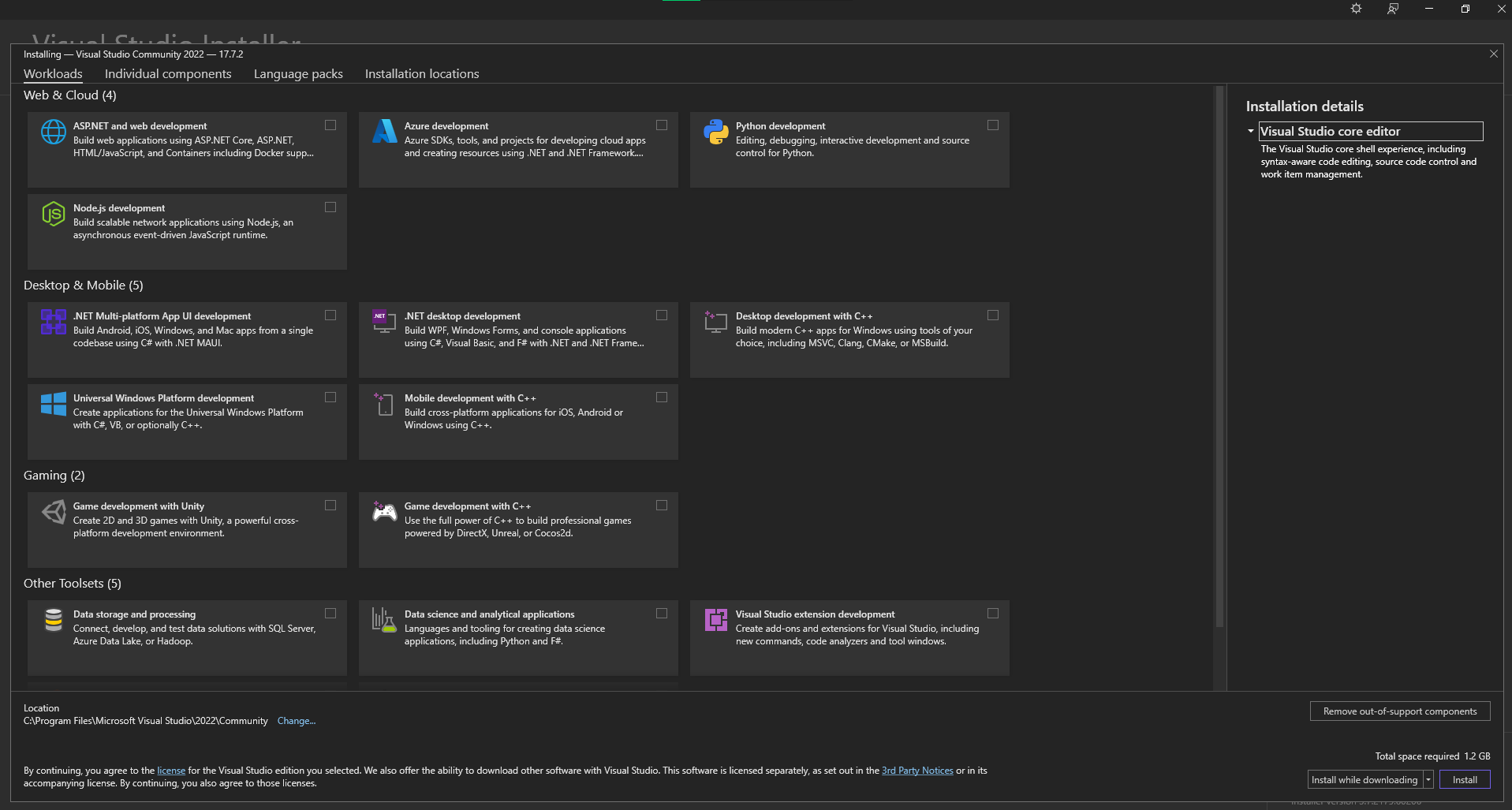
- The Visual Studio Installer will pop up, showing a wide range of components that can be downloaded alongside Visual Studio. These components cover a lot of different software development tools, programming languages, and add-ons. Don’t worry too much about making a mistake here or missing a download; you can install missing components at a later time just by running the VS Installer again (for example, components like Python, VS support for Unity, etc).
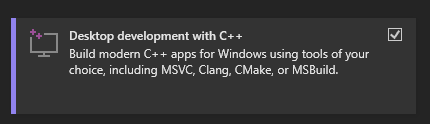
- Choose the “Desktop Development with C++” component:
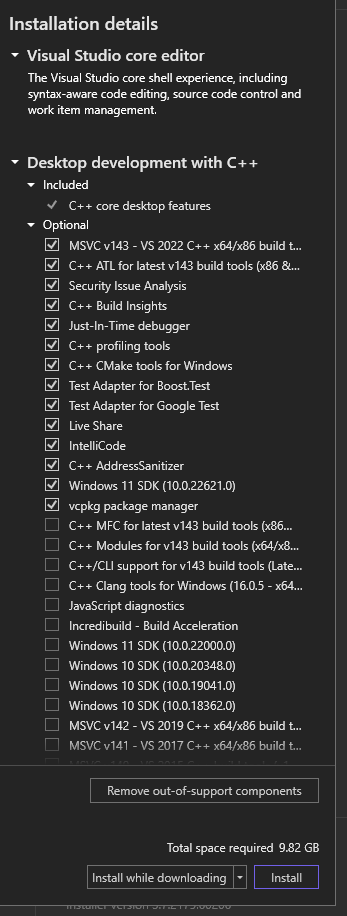
You will see the Installation Details pane on the right is now populated, similar to the following. You can choose to remove unnecessary components (like Test Adapter for Google Test, CoPilot, IntelliCode, etc)
- Press the installation button, and wait for VS to finish installing.
Notepad++
Notepad++ is a lightweight text editor, and is a nice alternative to editing code solely in Visual Studio’s text editor.
Download/Installation
- Go to this website to see the latest version of Notepad++: https://notepad-plus-plus.org/downloads/
- Click on the download link, then run the downloaded installer.