Online resources that go with this: https://pages.cs.wisc.edu/~remzi/OSTEP/cpu-intro.pdf https://pages.cs.wisc.edu/~remzi/OSTEP/cpu-api.pdf https://azrael.digipen.edu/~mmead/www/Courses/CS180/Processes-1.html
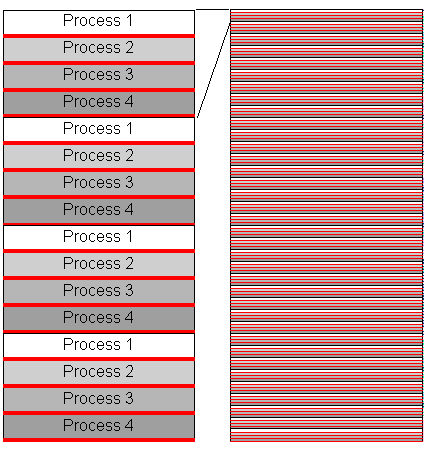
One of the most important tasks an operating system performs is to share CPU time between all of the currently running processes on a machine. The picture above is meant to show how an OS might switch between different processes running on a machine; the reality is much more complicated. But before we can start examining the complexity of how the OS switches between processes, we should know more about them. What does a process even LOOK like? You probably have some idea about what kinds of information belong to a process, but there are some things you might not know. Let’s break it down!
But first, a (not ultra-important) distinction:
-
A PROGRAM is just a .exe file. It’s a chunk of binary that represents the instructions and data that need to be executed for that program to “run”. It is PASSIVE; it’s just a file sitting on your hard drive.
-
A PROCESS is a running program. It carries the instructions and data for a program that have been loaded into RAM and are being executed. It is ACTIVE; it’s sitting in RAM.
How does a program BECOME a process?
Yeah, a process doesn’t just pop out of a magical program cocoon. There’s a specific set of steps the OS will go through to transform a program into a process.
Process Initialization
First, the OS creates an object called a Process Control Block, or PCB. We’ll discuss this in more detail later, but suffice to say that it is essentially a struct that keeps track of the relevant data about a process. The process is also given a unique identifier called a process ID (PID). It may also be assigned a priority.
Loading from Disk
Next, the OS reserves some memory in RAM for the new process it is about to create. This will be the address space of the new process.
Next, the program’s contents must be loaded into the processes’ address space. A program is usually stored in long-term memory somewhere (aka, on disk). The bytes of that .exe file are read from disk using the I/O system, and placed into address space of the new process. Note that in modern operating systems, a technique called lazy loading is used: only portions of code/data that are needed at the moment are loaded into RAM. This technique involves concepts called paging and swapping, which we’ll discuss later in the semester. But suffice to say: we need to load the program’s instructions and static data into RAM.
Memory Setup
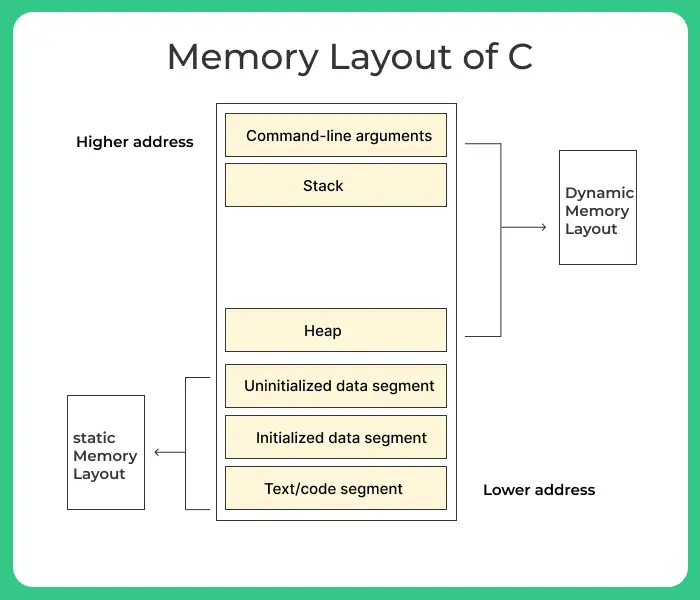
Now that the process and its instructions are in RAM, the OS will perform some additional setup. First, it will create the stack and heap of the process. The stack is used for storing local variables, function parameters, and return addresses. At this point the OS will also initialize the arguments to the main function, argc and argv, the command line arguments for the process.
Wait… the heap for the process is also set up? What does that mean? Isn’t the heap supposed to be dynamic?
If the OS creates some default heap space, what question does that raise?
Why would the OS do this in the first place? That means, if a program calls malloc, is it actually reserving new memory? Or is it just using some that was already reserved? Heap configuration in Windows
Other Setup and Starting Execution
The OS may perform other steps here as well. One example is setting up the UNIX file descriptors (standard input/output/error) for accessing reading/writing to the terminal. There may also be other OS-dependent setup tasks that occur during this time (things specific for a mobile OS for example).
Finally, the OS will start the process. The entry point for the process is located (usually the ‘main’ function), and CPU time is handed to the newly created process, so its instructions can be executed.
But… is a process always running?
When we say “running” above, that’s a bit of a misnomer. Each active process is in RAM, but we already know that each process isn’t running ALL THE TIME; we only have so many cores, so the CPU is shared between all running processes (virtualizing the CPU!). However, we have more varied states than just running or not running.
Process States
- Running - The instructions of this process are currently being executed by the CPU
- Ready - The process is ready to run! It wants to be swapped into the CPU to have instructions executed!
- Blocked - The process is waiting/paused, usually for some kind of event to happen or an I/O operation to complete
- Terminated - The process has been terminated; it’s dead, Jim
- New/Created - The process is being created right now!
It’s important to note that a process might be in one of these states for a relatively long time, OR a VERY VERY VERY short amount of time! For example, a process is put into the running state, runs for a miniscule amount of time, and after it is shifted out it is put into the ready state.
Process States - How long is a process in this state? (relatively speaking)
- Running - short
- Ready - short or long, depending on how many other processes are running!
- Blocked - long (since we’re waiting on some event or resources)
- Terminated - short or long
- New/Created - short
State Changes! How/when do processes transition between states?
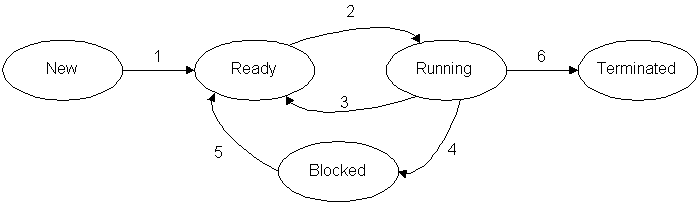
New →Ready(Admitted)
- The process has been created and is now being put into the ready/runnable queue (we’ll discuss this soon!)
Ready →Running(Dispatched/Scheduled)
- The OS (scheduler) has selected a process to run and is executing it on the CPU.
Running →Ready(Timeout/Descheduled)
- The process has used up its allotted time slice and is put back into the ready queue for later execution. This might instead happen if a higher-priority process has preempted it, even if this process still has time left
Running →Blocked (Need I/O or event to happen)
- The process has requested I/O or has requested to wait until a future event.
Blocked →Ready(I/O done or event occurred)
- Whatever event the process was waiting on (I/O or something else) has occured. The process is put back in the ready queue.
Running →Terminated(Ending)
- The process has completed its task or the system has terminated the process.
Some contrived examples of how this might play out with two processes:
| Tracing Process State, just CPU | Tracing Process State, CPU and I/O |
|---|---|
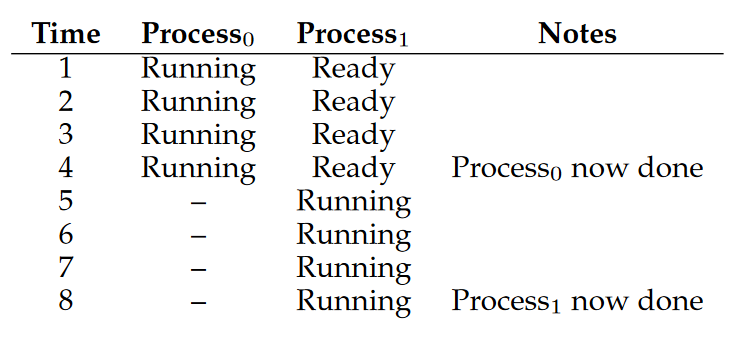 | 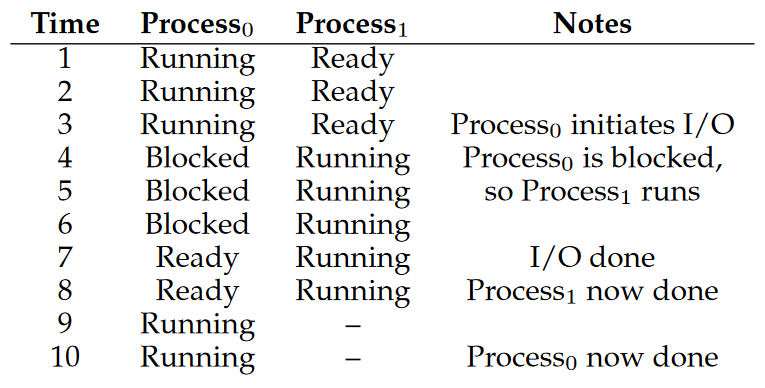 |
These examples might raise a few questions... what do you think?
In the first example, why does one P0 finish before P1 begins? In the second example, why does the OS not switch back to P0 after the I/O is done?
These decisions are made by the scheduler of the OS, which we’ll get to another day.
What’s in a Process?
So what makes up a process? The OS needs to keep track of everything that belongs to a particular process, to facilitate sharing the CPU between all running processes. It does so by using a structure called a Process Control Block. It’s basically a struct that contains relevant info about a running process. What’s in this PCB?
Process State
The process state we just mentioned is tracked here in the PCB; is this process running, ready, blocked, etc
Register Contents
Whenever a process is in a running state, its instructions and data are loaded into the registers of the CPU. If the process needs to be descheduled, the current contents of the registers must be saved to the PCB. Whenever this process is scheduled again, the register contents can be read from the PCB so execution can continue right where it left off. There are many different registers that must be saved, but two of the most important ones are the program counter (also called the instruction pointer, stores the memory address of the next instruction to be executed) and the stack pointer (tracks the top of the stack for this process).
Open Files
Whenever a process access an outside resource, the OS must keep track of which process is currently holding onto that resource. This is especially true of files or other I/O channels. The PCB lists which files/devices are currently held by this process.
Other Info
There’s a LOT of other information that can exist in the PCB for a process. Can you guess what some of it might be?
Other things tracked by the PCB
What does this PCB look like in practice? Linux task_struct Look for: files, mm, pid, time, state
How does the OS track processes (and their associated PCBs)?
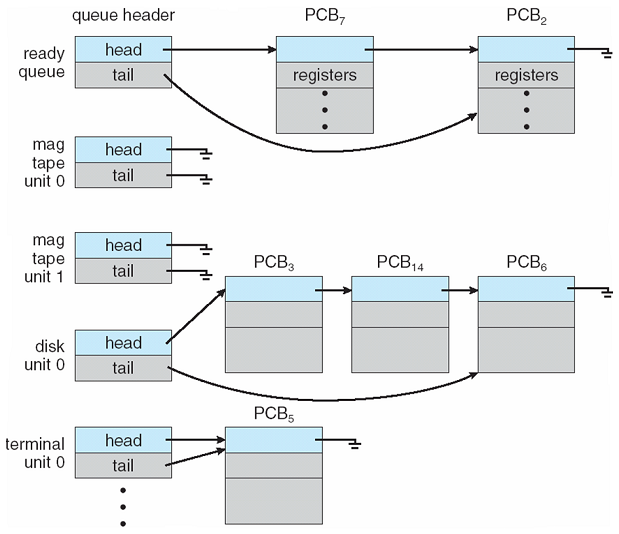
Each operating system implements this mechanism differently. At a minimum, there is some kind of process list for tracking the different active processes and their associated information. For example, linux uses a linked list representing a queue for the different PCBs in various states: